
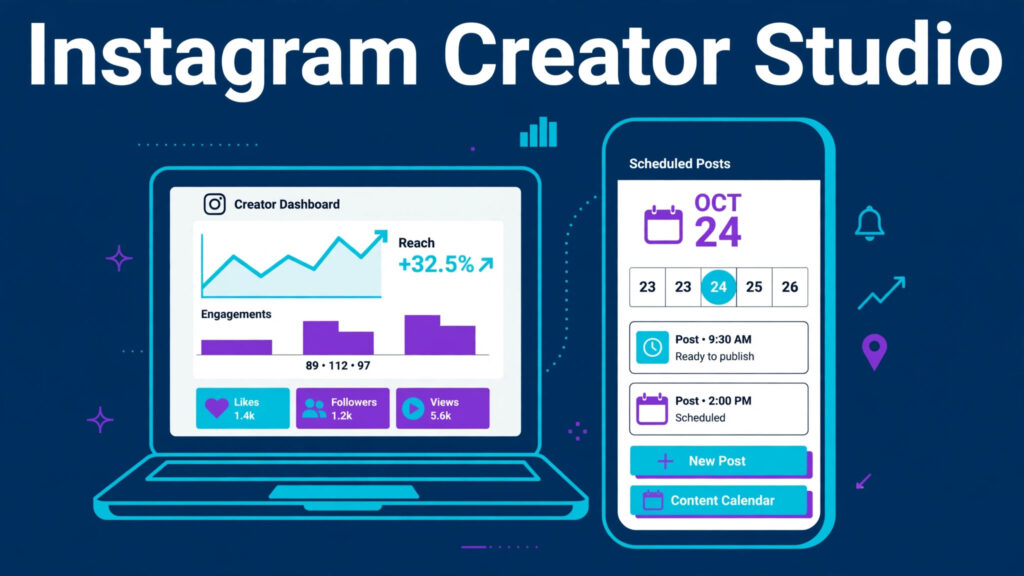
Instagram Creator Studio was the desktop home for creators who wanted to schedule posts, check insights, and manage monetization without living on their phone. If you search for it now, you land somewhere confusing: the old dashboard is gone, its tools live in Meta Business Suite, and Meta has reused the name for a different product. This guide explains what it was, where each feature went, and how to do the same jobs today, from scheduling a Reel to checking whether you can earn.
What Instagram Creator Studio Was
Creator Studio was Meta’s free desktop dashboard for managing Facebook Pages and Instagram professional accounts. From one screen, creators could publish and schedule posts, review insights, answer messages and comments, and check monetization. Many creators still search for creator studio instagram out of habit, because for a long time it was the only official way to schedule Instagram posts from a computer.
It was built for one workflow: plan a week of content on a big screen, write captions with a real keyboard, check which posts performed, and reply to comments in bulk. That workflow has not gone away, but the tool has moved, and not cleanly: some features landed somewhere unexpected.
Where Creator Studio Went: The Move to Meta Business Suite
Meta retired the Creator Studio web dashboard and folded its tools into Meta Business Suite, the hub for managing Facebook Pages and Instagram accounts together. The old web addresses no longer open a dashboard. Follow one and you land on a page for a different product reusing the name: a mobile app for Facebook creators, available in limited regions.
Everything Creator Studio did for Instagram now lives in Meta Business Suite, under different names and in different corners. Scheduling sits in the Planner and Content sections, insights live under Insights, messages and comments are in the Inbox, and monetization has its own section. Nothing was deleted, but the layout changed enough that longtime users often assume a feature is gone when it only moved. Open Meta Business Suite and log in with the Facebook account that manages your Page.
What Still Works in Meta Business Suite
Almost every Creator Studio job still works in Business Suite, and a few work better. You can create and schedule feed posts, carousels, Reels, and Stories for Instagram, and publish the same post to Facebook at the same time. The Planner shows a calendar of everything scheduled, published, and drafted, so you can spot gaps at a glance.
The Inbox combines Instagram comments and direct messages with Facebook messages, so you reply to everything from one screen. Insights still cover reach, engagement, follower growth, and per-post performance by content type. The Content section holds your published posts, drafts, and scheduled items. For anyone managing a Page and an Instagram account, the combined view is the one genuine upgrade over Creator Studio. Our Facebook Ads Manager guide covers the advertising side of the same Meta toolkit.
How to Schedule Instagram Posts Now
Scheduling is the feature most people miss from Creator Studio, and it works well in Business Suite once you know the path. Start by connecting your Instagram professional account to your Facebook Page in Business Suite Settings, under Accounts. Without that link, scheduling is not available, and personal accounts cannot schedule through Business Suite at all.
To schedule a post, open Business Suite, click Create post, and choose your Instagram profile. Add your photos or video, write the caption, add hashtags, and set the publishing time under Scheduling options. Stories are the one format where Business Suite beats the app, because the app scheduler does not handle Stories at all. A scheduled post goes out exactly as written, so check the caption and image before you confirm it. For live video planning, our Facebook Live guide covers the other side of Meta publishing.
Insights and Analytics: What You Can Still See
Business Suite Insights covers reach, impressions, engagement, profile visits, follows, and follower growth. Filter by date range and content type to compare Reels with feed posts or Stories with carousels. Per-post data shows reach, likes, comments, shares, and saves, and Reels add watch time and plays.
The audience section shows follower demographics and the times your followers are most active. That active-times data tells you when to schedule posts instead of guessing. One limitation: Business Suite insights are less detailed than the app for some Reels metrics, so check both places when a number matters.
Monetization Eligibility and Where to Check It
Monetization moved most confusingly. In Creator Studio it had its own tab. In Business Suite it lives in the Monetization section, where you can see eligibility for tools such as in-stream ads, Stars, subscriptions, and bonuses, along with earnings and payout status. Eligibility depends on account type, follower count, location, and compliance with Meta’s partner monetization policies, and it varies by tool, so check each one separately.
Instagram also shows monetization status in the app. Open your professional dashboard and look for the monetization section, which lists the tools you are eligible for and steps still needed, such as setting up payouts. If a tool shows as unavailable, the reason is usually listed next to it: a follower threshold, a location restriction, or a policy issue. Fix the stated reason before appealing or reapplying. Creators who work with brands should also read our guide to finding and contacting influencers.
Current Scheduling Limits to Know
Business Suite scheduling has limits worth knowing before you plan a month of content. Meta documents a window of about 20 minutes to 29 days ahead, so you cannot schedule for this afternoon or for next quarter. Plan in monthly batches. Carousels posted from Business Suite are capped at 10 photos, while the app allows up to 20, so build long carousels in the app.
Stories scheduled through Business Suite lose interactive stickers: polls, question boxes, sliders, and countdowns are stripped out at publish. If a Story needs a poll, publish it live from the app instead. Reels scheduled through Business Suite also miss a few in-app features, such as some trending audio. The in-app scheduler allows up to 30 days ahead and 25 scheduled posts per day per account, but it cannot schedule Stories. Meta documents these limits in its developer documentation and help centre, and the numbers change, so check the date picker in your own account.
Creator Studio vs the Instagram App
Neither Business Suite nor the Instagram app does everything, so the practical answer is to use both. Business Suite wins for planning: the calendar view, bulk scheduling, cross-posting to Facebook, and a proper keyboard for captions. The app wins for anything interactive or creative: Stories with polls, Reels with trending audio, long carousels, and the fullest Reels analytics.
A workable routine is to plan and schedule the bulk of your feed posts and Reels in Business Suite, then use the app for Stories, live sessions, and replies. Check insights in both places: each shows a slightly different slice of the same data. Scheduling is only the delivery step: the content still has to earn attention, and distribution still matters. Our guest posting service and link insertion service help content earn backlinks that raise its authority, and our guide to internal linking strategy shows how to make those links work harder. Start at Ourex.pro.
FAQs
Does Instagram Creator Studio still exist?
No, not as a web dashboard. Meta retired Creator Studio and moved its tools into Meta Business Suite, and has reused the name for a separate mobile app. For scheduling and insights, use Meta Business Suite.
How do I schedule Instagram posts from a computer now?
Use Meta Business Suite. Connect your Instagram professional account to your Facebook Page, click Create post, choose Instagram as the destination, add your media and caption, then set the date and time under Scheduling options.
Where do I check Instagram monetization eligibility?
Check two places. In Meta Business Suite, open the Monetization section for eligibility, earnings, and payout status. In the app, open your professional dashboard, which lists each tool and any steps still needed.
Can I schedule Instagram Stories?
Yes, but only through Meta Business Suite or a third-party scheduler, not the Instagram app scheduler. Interactive stickers such as polls and question boxes are stripped out when a Story is scheduled, so publish Stories with polls live from the app.